
How to edit a plugin or mod config file
Plugin settings live in plugins/ in a folder named after the plugin, usually as config.yml, and mod settings live in config/. Edit the file, save it and restart the server. Spacing matters in .yml files: one wrong indent can stop the file loading.
Updated 16 November 2026
These steps use Atlas, the Loreline control panel. Open this guide in Atlas.
- Open Atlas File Manager. Plugin settings are inside the plugins/ folder, in a folder named after the plugin. Mod settings are in the config/ folder.
- Find the file, often named config.yml, a .toml or a .json file. Press Edit next to it.
- Change the value and save. Be careful with spaces and indentation in .yml files, because one wrong space can stop the file loading.
- Restart your server so the change applies. Some plugins also have a reload command you can type in the Console, but a restart is the safest.
- If the server will not start afterwards, open the file again and undo your change, or restore a backup.
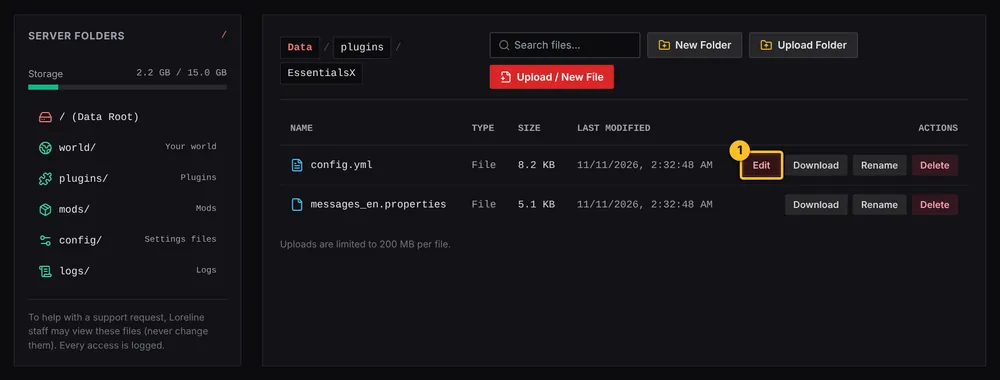
The editor works for text files up to about 1 MB. For bigger files, download, edit on your computer and upload again.
More Minecraft guides
- Which server software do I need for mods or plugins?
- How to install plugins (Paper or Purpur)
- How to install mods (Fabric, Forge or NeoForge)
- How to install a modpack from Modrinth
- How to change server settings (difficulty, game mode, MOTD, whitelist)
- How to update or remove a mod or plugin
- My server will not start after adding a mod or plugin
- How to upload a world you already have
- All Minecraft guides
Minecraft hosting from Loreline
Mods, plugins and modpacks, nightly backups and one control panel.