
How to install mods (Fabric, Forge or NeoForge)
Mods go in the server's mods/ folder, and the server must run the loader (Fabric, Forge or NeoForge) and the Minecraft version the mods were built for. Most mods that add blocks or items also need installing on every player's game, at the same version.
Updated 16 November 2026
These steps use Atlas, the Loreline control panel. Open this guide in Atlas.
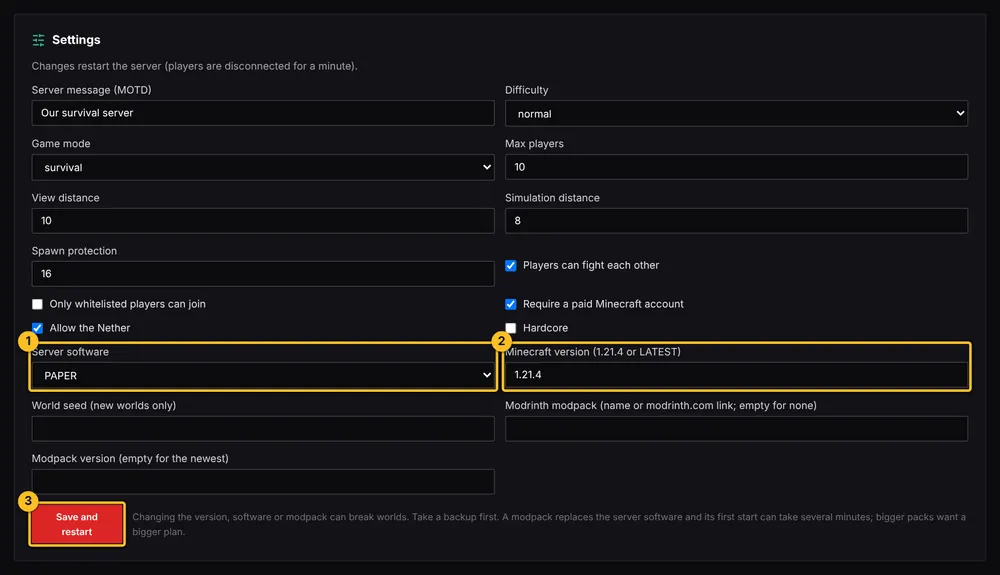
- Open Settings and set Server software to the loader your mods use (Fabric, Forge or NeoForge) and the Minecraft version they support. Press Save and restart. Take a backup first.
- Download each mod's .jar file for that exact loader and Minecraft version, from a source you trust such as Modrinth.
- Many Fabric mods also need Fabric API. Check each mod's page for required mods and add those too.
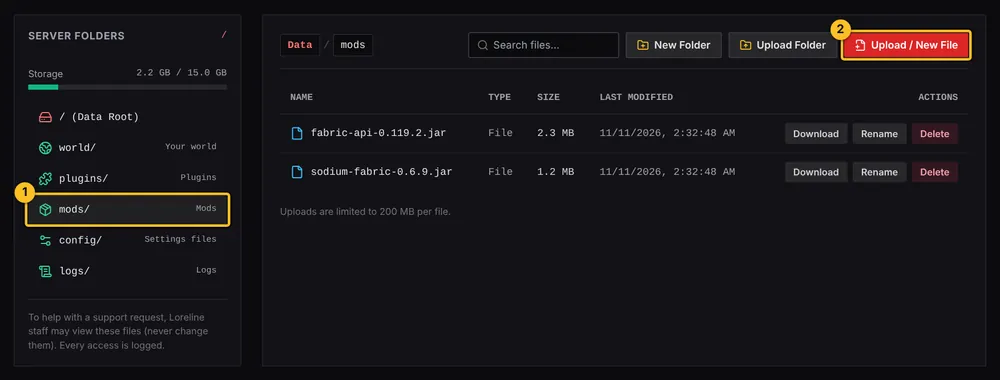
- In Atlas File Manager (the Files link in the bar at the top of your server page), open the mods/ folder, then press Upload / New File and choose the .jar files.
- Restart your server from Atlas. Mods only load at startup, so the first start after adding them can take a few minutes.
- Check the Server log for errors. A line naming a mod and "missing" or "incompatible" means the wrong version or a missing required mod.
- Install the same mods on each player's own game. Most mods that add blocks or items must be on both the server and the player's computer, and the versions need to match.
More Minecraft guides
- Which server software do I need for mods or plugins?
- How to install plugins (Paper or Purpur)
- How to install a modpack from Modrinth
- How to change server settings (difficulty, game mode, MOTD, whitelist)
- How to edit a plugin or mod config file
- How to update or remove a mod or plugin
- My server will not start after adding a mod or plugin
- How to upload a world you already have
- All Minecraft guides
Minecraft hosting from Loreline
Mods, plugins and modpacks, nightly backups and one control panel.