
My server will not start after adding a mod or plugin
When a server stops starting after you add a mod or plugin, the last lines of the server log usually name the cause, often with words like missing, incompatible or mandatory dependencies. Remove that .jar and restart, or take out your newest additions one at a time.
Updated 16 November 2026
These steps use Atlas, the Loreline control panel. Open this guide in Atlas.
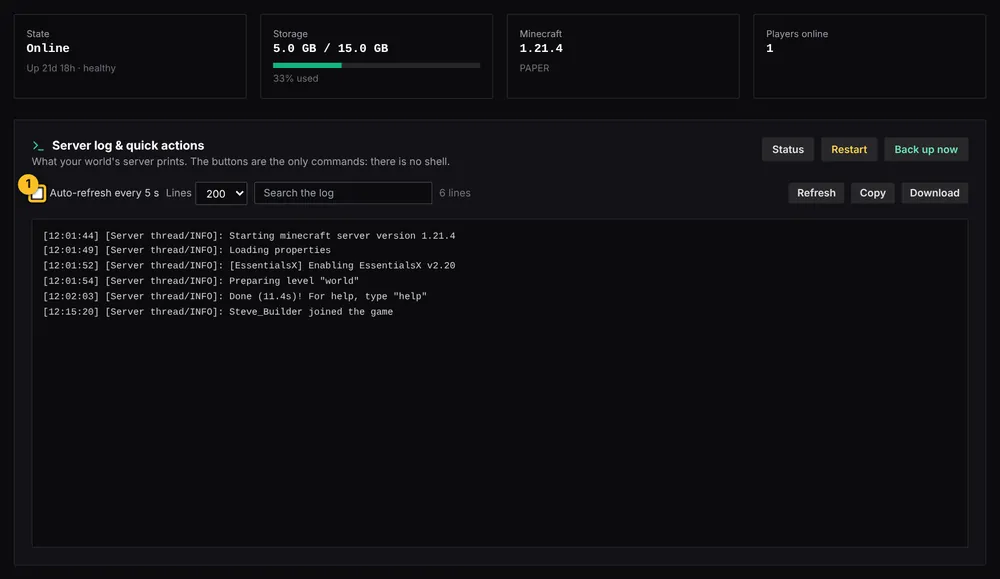
- Look at the Server log near the top of your server page and read the last lines. The name of the problem mod or plugin is usually in there.
- In Atlas File Manager, press Delete next to that .jar in the mods/ or plugins/ folder, then restart.
- If you do not know which one caused it, remove the newest ones you added first.
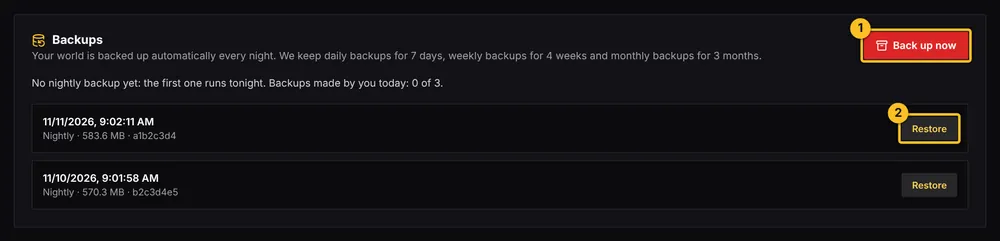
- Still stuck? Restore your latest backup, or open a support request and we will read the log with you.
More Minecraft guides
- Which server software do I need for mods or plugins?
- How to install plugins (Paper or Purpur)
- How to install mods (Fabric, Forge or NeoForge)
- How to install a modpack from Modrinth
- How to change server settings (difficulty, game mode, MOTD, whitelist)
- How to edit a plugin or mod config file
- How to update or remove a mod or plugin
- How to upload a world you already have
- All Minecraft guides
Minecraft hosting from Loreline
Mods, plugins and modpacks, nightly backups and one control panel.