
How to update or remove a mod or plugin
To update a mod or plugin, replace its old .jar with the new one and restart. To remove it, delete the .jar. Keep only one version of each, back up before you start, and expect gaps in the world if you remove a mod that added blocks.
Updated 16 November 2026
These steps use Atlas, the Loreline control panel. Open this guide in Atlas.
- Take a backup first.
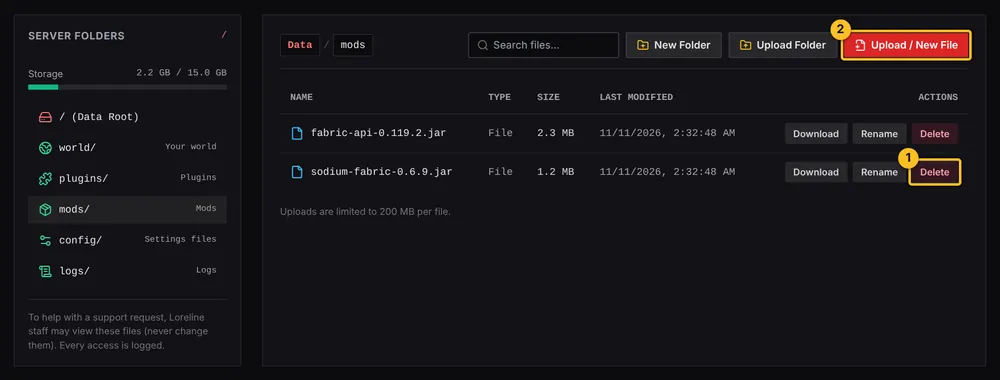
- Open Atlas File Manager and go to the mods/ or plugins/ folder.
- To update, delete the old .jar and upload the new one. Keep only one version of each, because two copies can stop the server starting.
- To remove one, delete its .jar. Its settings folder can stay, in case you want it back later.
- Restart your server and check the Server log for errors.
Removing a mod that added blocks or items can leave gaps in the world. Restore your backup if something looks wrong.
More Minecraft guides
- Which server software do I need for mods or plugins?
- How to install plugins (Paper or Purpur)
- How to install mods (Fabric, Forge or NeoForge)
- How to install a modpack from Modrinth
- How to change server settings (difficulty, game mode, MOTD, whitelist)
- How to edit a plugin or mod config file
- My server will not start after adding a mod or plugin
- How to upload a world you already have
- All Minecraft guides
Minecraft hosting from Loreline
Mods, plugins and modpacks, nightly backups and one control panel.