
How to change server settings (difficulty, game mode, MOTD, whitelist)
Most Minecraft server settings live in server.properties: difficulty, game mode, PvP, the whitelist, view distance and the message players see in their server list. Change them, then restart, because the server only reads most settings when it starts.
Updated 16 November 2026
These steps use Atlas, the Loreline control panel. Open this guide in Atlas.
- Open your server in Atlas and find the Settings card.
- Change what you want: server message, difficulty, game mode, maximum players, view distance, PvP, the whitelist, the Nether, hardcore and more.
- Press Save and restart. Players are disconnected for about a minute while it restarts.
- Lower view distance and simulation distance if the server lags with many players. Higher values look better but use more memory.
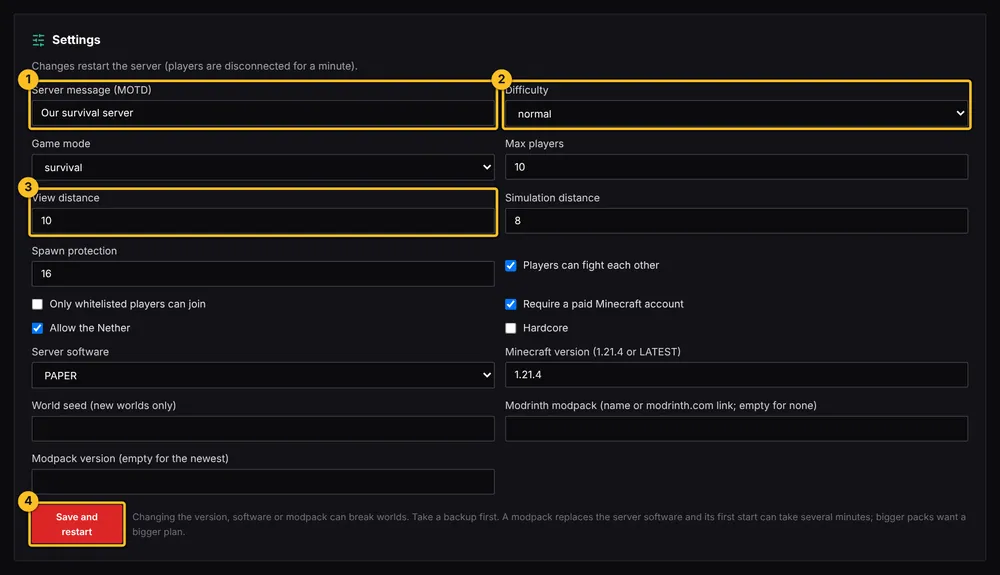
Server software, version and modpack changes can break a world. Press Back up now first.
More Minecraft guides
- Which server software do I need for mods or plugins?
- How to install plugins (Paper or Purpur)
- How to install mods (Fabric, Forge or NeoForge)
- How to install a modpack from Modrinth
- How to edit a plugin or mod config file
- How to update or remove a mod or plugin
- My server will not start after adding a mod or plugin
- How to upload a world you already have
- All Minecraft guides
Minecraft hosting from Loreline
Mods, plugins and modpacks, nightly backups and one control panel.